

Designing cards
A card is one thing that could happen: a beat, an encounter, a topic, a bark. Cards live in decks, and a deck lives in a box. This page is the everyday loop of designing them.
The deck
Section titled “The deck”Open a deck and its Cards tab shows every card in it. A switch at the top right of the page offers three views of the same cards:
- Card view: each card as a face, with its title, its condition as an
ifpreview beneath, its purpose as body text, and its tag chips. Each tag keeps its own colour, so you learn your zones and your cast by colour and can scan a deck fast. - Table view: title, gameId, When, Where and Tags down columns, for scanning a long deck. Where is the card’s placement (its home hands and regions); Tags is everything else - the same split the card’s own Dealing tab draws.
- Node view: the cards as nodes, with the arrows between them worked out for you. This is a deck’s default view, and it has its own page.
The switch is remembered, so a deck opens the way you left it.
A card carries no player-facing text. Its purpose is its story as far as your team is concerned, and reading a deck top to bottom reads the story’s beats. Priority, redraw and copies aren’t on the face; they’re one click away, inside the card.
Getting around and editing:
- Click a card to open its document. The deck stays highlighted in the navigator.
- + New card sits at the end of the deck (and on File ▸ New Card,
Shift+Cmd+N). On the node canvas, right-click for New card here. - Drag to reorder. The order is only how the editor lists the cards; it has no effect on which card comes up. (Outcomes are the one place where the order you choose does reach the game: right-click one for Move up and Move down.)
- Right-click a card for Duplicate and Delete.
Cmd+Dduplicates the selection. - Inside a card,
Escgoes back to the deck, and the stepper beside the trail (↑/↓) moves to the previous or next card without going back.
The deck’s other tabs are Dealing (the condition for any card in this deck, and
Shared across playthroughs, which makes the whole pile scarce in the world rather than
one each per playthrough) and Properties (the deck’s own @deck state).
The card document
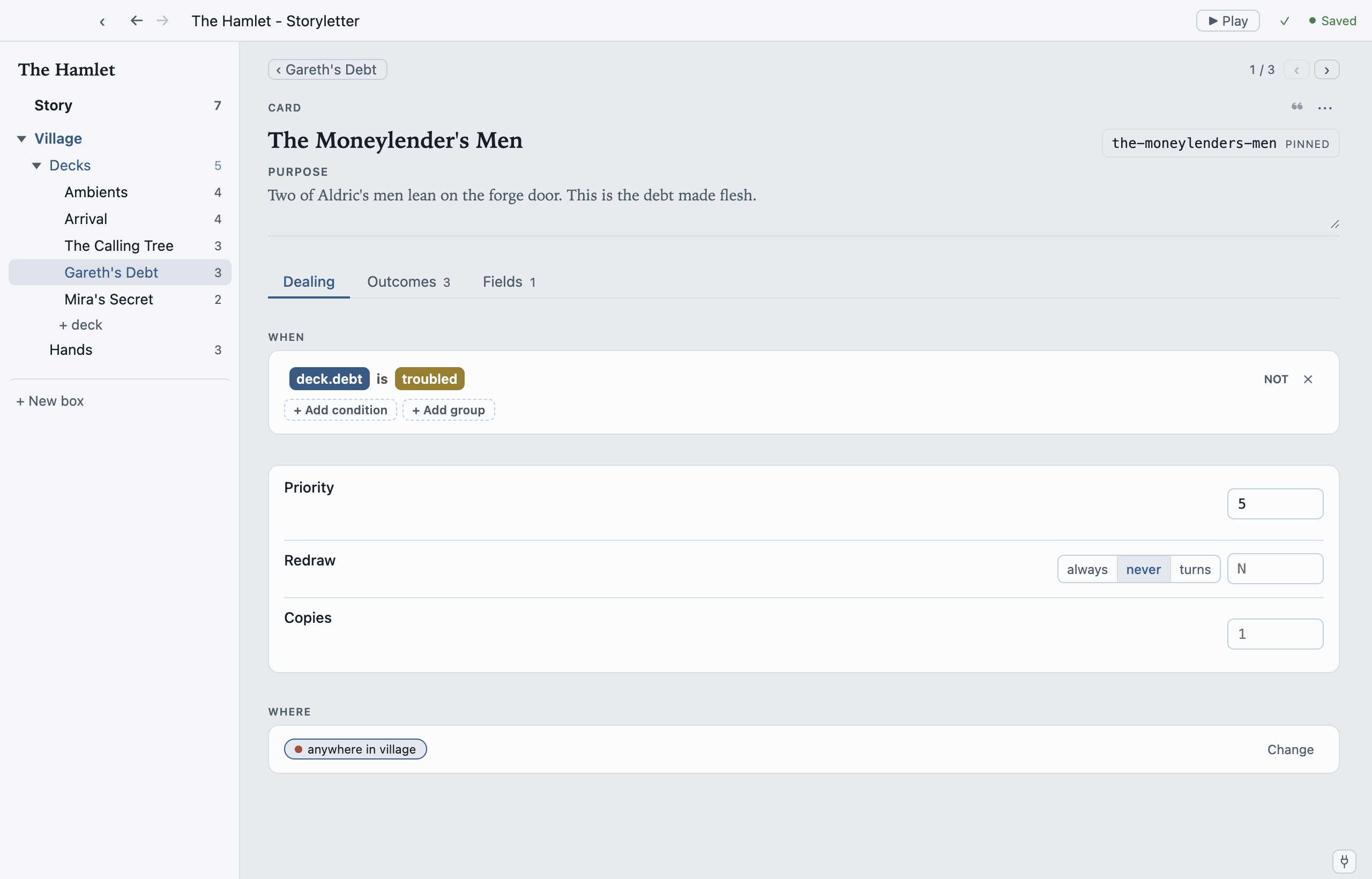
Section titled “The card document”The identity heading holds the title, the gameId chip and the purpose. Below it are three tabs.
Dealing
Section titled “Dealing”Everything about how this card gets dealt, on one page.
- When: the condition to be dealt, in the expression editor. It knows your project’s declared properties, so it offers the names that exist. A property pill answers for itself: hover it for the property’s purpose (and, for a quality, its ladder of stages), and right-click it for Go to definition, which opens the property where it’s declared, and Find usages, which opens Find on everything that reads or writes it. The same works on the pills in an outcome’s changes.
- Priority: what cards are ordered on, and higher goes first. The hint under it changes with your box: if the box has Rank by specificity on, priority only breaks ties between cards that ask for the same amount; if it’s off, priority decides the order outright.
- Redraw: whether a played card can be dealt again. A three-way switch,
always/never/turns, with a number field that wakes up when you pick turns. The number is counted in this box’s own turns. - Copies: how many hands may hold this card at once. One copy is the rule; more is for interchangeable filler.
- Shared across playthroughs: whether this card is scarce in the WORLD rather than one each per playthrough - the difference between “everyone can find the goblin” and “only the first player to find it gets it”. Three settings, not two: deck (shared) or deck (not shared) takes whatever the deck says, and the label tells you which so you can see why a card in a shared pile is scarce without opening the deck; shared and not shared override it for this card alone.
- In the world: how many copies exist across every playthrough, when the card is effectively shared. Offered only then, because on an unshared card it does nothing. Defaults to Copies, so the common “one in the world, one to a customer” needs nothing set.
- Where: the one you reach for most. It answers “where does this card come up?” in a sentence: Anywhere, or The Inn, or anywhere in the forest, or a combination. Change opens a picker with two sections, Places (the box’s hands, each showing the region it sits in) and the region groups. Choosing a place pins the card to exactly that place; choosing a region lets it come up anywhere inside one. Choosing both means BOTH must match, which is usually a mistake, so the row says so when the place you picked is not in the region you picked.
- Tags: one row per remaining tag group, each a strip of chips you toggle. Place and
region groups are not here: the Where row above owns them. When a card has no tags the
section collapses to one line reading “untagged”, with a
+to open it.
Outcomes
Section titled “Outcomes”An outcome is what the player (or your game) can do with the card once it’s dealt: one card can offer several. The tab is an accordion: closed outcomes are single rows, and the open one expands into its full editor: title, purpose, its own condition, and its changes, each a property and an expression. Right-click any row for Move up, Move down, Duplicate and Remove; the open editor also ends with a Remove outcome button.
Fields
Section titled “Fields”The box’s card template, as label-and-control rows: one row per declared field. The control follows the field’s type, so boolean and enum fields offer their values in a picker, while string, number and flags fields are text.
If the box declares no fields, the tab says so and points you at the box’s Card template tab.
Saving
Section titled “Saving”There’s nothing to remember to save. Your edits are written to the project files as you
make them, in the same fixed layout every time, and the top bar shows where that has got
to (Saved, Saving…, Unsaved). File ▸ Save (Cmd+S) is there for the
reflex, and flushes anything still pending. Validation re-runs each time it saves.
MIT-licensed open source · Made by Ian Thomas · storylet.studio