
Simulate
Simulate plays your current draft live, inside the editor, on the same engine that runs a published storyworld. It's the everyday way authors and designers test what they're building: storylets get dealt under your current conditions, you pick outcomes, the world state updates, and you see what a player would see.
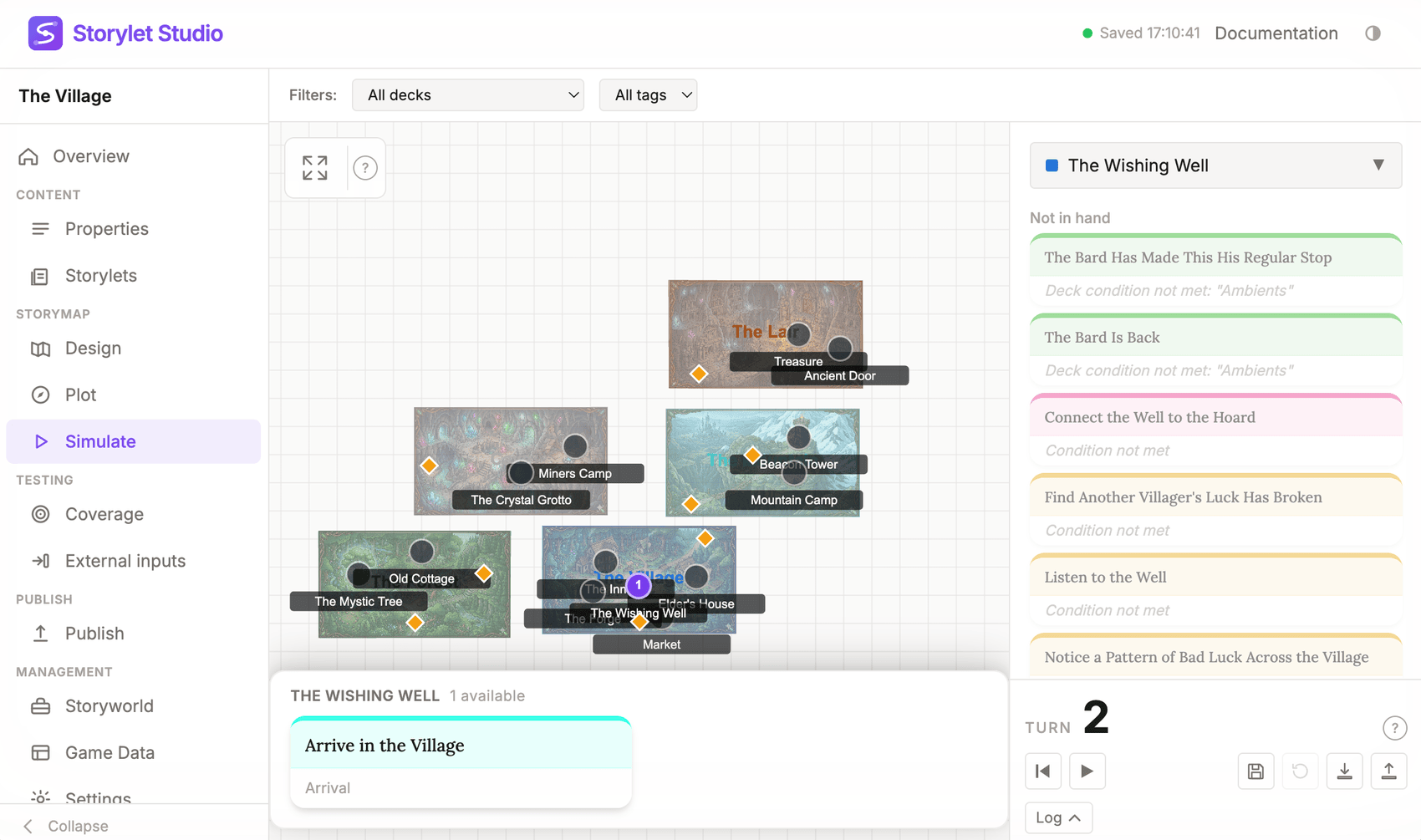
Simulate is built into both the web app and the desktop app. There's nothing to install or publish to use it.
Where to find it
- Storymap > Simulate is the full-screen view. Storymap geography on the left, the current hand on the right.
- The Explore tab is the same engine in a more compact layout, handy for quick checks alongside the editor while you're authoring.
What you can do
- Click a site pin on the map to go there and see its current hand (the storylets available there now). Navigating costs one turn.
- Click a storylet card to read it, then pick an outcome. The outcome is applied, every site's hand refills against the updated state, and the turn counter advances. Outcomes whose availability condition is not met appear disabled and marked (locked) - you see exactly what a player would see, including the choices they cannot yet take.
- Storylets that are eligible but not in the current hand show up in the right sidebar as Not in hand, each with a one-line reason: cooldown remaining, condition not met, or lower priority than another storylet that took the slot. Handy for "why isn't my storylet showing up?" debugging.
Simulation controls
Pinned at the bottom of the right sidebar:
- Turn counter - the current game turn.
- Reset sim (
|◀) - restart the simulation from scratch. - Advance turn (
▶) - move one turn on and refill every site's hand, without playing a storylet. - Save state - name and save the current world state as a snapshot; the date and time are prepended automatically.
- Restore state - load a snapshot you saved earlier.
- Export… - write the current state out as a portable
.storyworldstatefile. You can reopen it in another browser, in the Electron build, or in the Unreal / Unity plugins (their State tab has the same Save / Restore State buttons). - Import… - load state from a
.storyworldstatefile. If the file was saved against a different storyworld you'll get a warning before it's applied. - Log - expand an inline log of every draw, eviction, and play event, with Copy and Download options (see below).
If your storyworld declares External Inputs - values a host game or operator sets from outside the story - an External inputs panel shows up here too. You can set any of them to a declared value on the spot, and an Auto-drive toggle fires recurring ones as turns advance.
Multiplayer storyworlds
If your storyworld is multiplayer, Simulate runs a shared session instead of one solo playthrough, so you can test the multiplayer model without a live deployment. The view gains a small roster of players and a few extra controls; single-player storyworlds show none of this chrome.
- Active player. Pick whose point of view you're looking at. The map, hands, properties, and log all switch to that player's view. Add or remove players from the roster as you go.
- Shared vs personal, in action. A shared write by one player shows up for everyone when you switch to them; a personal write stays with the player who made it. It's the quickest way to confirm a property is on the layer you meant.
- Operator panel. Set any
@systemvalue yourself, standing in for the operator or external system that would drive it in a real installation, and watch the story react. - Stepping turns. Advance turn steps only the active player; Advance all players steps everyone one turn at once - handy for content that gates on several players' progress.
- All players log. The action log gains an All players toggle that merges every player's entries into one turn-ordered stream, each tagged with its player - the fastest way to see how one player's action set up another's.
Everything else - clicking sites, playing outcomes, the Not-in-hand reasons -
works just as it does in single-player, only from the active player's point of
view. See Multiplayer storyworlds for the shared/personal and
@player / @system concepts these controls exercise.
Action log
The Log button opens the action log overlay, recording every event chronologically:
| Icon colour | Event | What it means |
|---|---|---|
| Green | Drew | A storylet was dealt into a site's available hand |
| Grey | Evicted | A storylet was removed because conditions changed |
| Purple/Blue | Played | You resolved a storylet and chose an outcome |
Each row shows the turn number, the site name, the storylet title, and (for plays) the outcome chosen.
From the overlay you can Copy as text (a plain-text summary to the clipboard), Download the log as a .txt file, or Close it.
The log resets whenever you click Reset sim.
When to use Simulate vs Coverage Testing vs Connections vs the Standalone Player
Four tools, four jobs:
- Simulate is for you as the author: one live playthrough you control by hand, against your current draft, with no publish step. Save states and the action log are inline. Use it as you build, whenever you want to see what a specific situation feels like.
- Coverage Testing is for the whole storyworld: thousands of automated runs with random card and outcome picks, aggregated into a hit-rate report per zone / deck / site / storylet / outcome. It doesn't care what's interesting, only what's reachable. Run it whenever you want to confirm nothing's dead, especially before sharing a draft.
- Connections is the static-analysis companion to Coverage: instead of running playthroughs, it walks the conditions and outcomes to work out which storylets can enable, disable, or influence which others. It's a view in the switcher inside a single deck (with an act-flow map at the Acts overview). When Coverage flags a storylet as never-fires, drill into its deck and switch to Connections to see what (if anything) could enable it.
- The Standalone Player is for someone else: it packages the published runtime as a single HTML file a playtester can open in a browser, no Storylet Studio install required.