
Coverage Testing
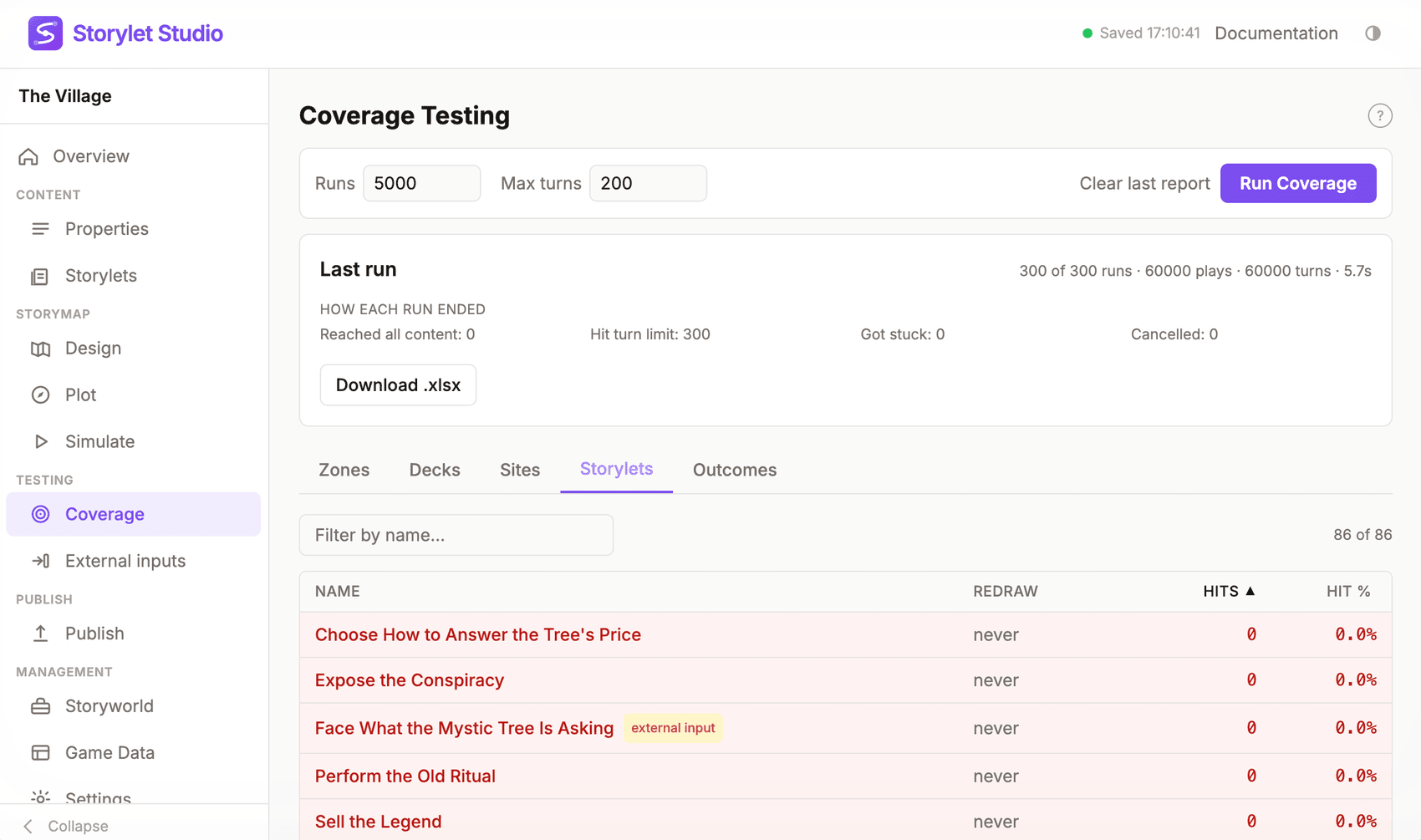
Coverage Testing runs your storyworld many times over with random card and outcome choices, then tells you how often each part of the story got exercised. It's the fastest way to find dead content (storylets that never fire), under-exposed branches (outcomes that almost never get picked), and uneven zone or deck usage.
Coverage Testing runs entirely on your machine. Nothing leaves the authoring tool while it's running.
Where to find it
In the left-hand nav, open the Testing group and click Coverage. The page is on both the web app and the desktop app.
How it works
Pressing Run Coverage does this:
- Saves any unsaved edits to your storyworld first. The report always matches a storyworld you could in principle publish.
- Builds the playable version of your saved storyworld.
- Runs the configured number of randomised playthroughs on the same
engine your published storyworld uses. Each playthrough:
- Picks a card at random from everything currently available across all the sites.
- Picks one of that storylet's available outcomes at random. Gated outcomes whose condition is unmet are skipped, exactly as a real player could not pick them - so an outcome that can never unlock shows 0% and an outcome gated behind rare state shows a low hit rate.
- Continues until either every storylet has been drawn at least once and no "never redraw" storylets remain in the pack, OR the maximum turn limit is reached, OR a stuck counter trips after too many empty-hand turns in a row.
- Aggregates hit counts across all runs and shows you the report.
While a run is in flight, a modal blocks the rest of the authoring tool so you can't accidentally edit the storyworld mid-sample. Press Cancel at any time to stop the run; the partial report is kept.
The two knobs
- Runs (default 5000): how many randomised playthroughs to simulate. More runs gives more reliable hit-rate numbers but takes longer. 5000 is a good default for a story with up to a few hundred storylets; bump it for very large stories with lots of branching.
- Max turns per run (default 200): a safety ceiling. A single run ends naturally when content is exhausted (every storylet drawn at least once and every "never redraw" storylet played), but if your story has long chains or a lot of cooldown-only redraws it might not exhaust within a sensible number of turns. The ceiling guarantees each run finishes.
- Players (default 4, multiplayer only): how many players share each simulated session. This knob only appears when your storyworld is multiplayer (see below); single-player storyworlds don't show it.
Multiplayer storyworlds
When your storyworld is multiplayer, Coverage simulates several
players sharing one session instead of a single solo playthrough. Each
run starts a shared session, joins the configured number of players,
and on every turn lets a randomly chosen player take their turn. This
matters because some content only becomes reachable once another
player has changed shared state, a durable @player value, or an
installation-wide @system value. A solo walk would never see it, so
it would show up as a dead branch even though it's perfectly
reachable in play.
The report looks and reads exactly the same as for a single-player storyworld - one row per zone, deck, site, storylet, and outcome - and hit counts are pooled across all the players (the report describes the storyworld, not any one player). The run summary shows the player count that was used.
External inputs apply in multiplayer runs too, including inputs that
target @player and @system properties (in a single-player run
those scopes don't exist, so any inputs declared for them are just
ignored).
Reading the report
Five tabs - Zones, Decks, Sites, Storylets, Outcomes - each show a sortable, filterable table (a sixth Prompts tab appears when your storyworld uses prompts; see below):
- Hits: how many plays this item was involved in across all runs.
- Hit %: as a percentage of total plays (zones / decks / sites / storylets) or as a percentage of plays of the parent storylet (outcomes - so two outcomes on the same storylet always sum to 100% when that storylet has any hits). For zones / decks / sites / storylets, Hit % and Hits sort by the same underlying count, so either column header gives you the same order.
Click any column header to sort by it. Click again to flip the direction. Sort order is shared across tabs - if you sort Storylets by Hits descending, switching to Sites keeps that same sort. The filter input above the table narrows the visible rows by name.
Click any row's name to jump straight to that entity's editor: storylets and outcomes open in the storylet inspector (outcomes land on the parent storylet's Outcomes tab), decks open the deck inspector, and zones / sites jump to the storymap with the entity selected. It's the fastest way to triage a low-hit row: see it, click it, fix the condition.
Rows with zero hits are flagged red. These are the things to look at first: a zero-hit storylet might have a condition that's never satisfiable, a deck condition that's too restrictive, or an outcome whose parent storylet is itself unreachable.
When a row flags as zero-hit, drill into its deck and switch to the Connections view, then double-click the node to focus the analysis on it - the fastest way to answer "why didn't this fire?", since it shows what (if anything) could enable it.
The header above the tabs summarises the run: how many of the requested runs were executed (may be less if you cancelled), total plays, total turns, and a breakdown of how each run ended:
- Reached all content - every storylet was drawn at least
once AND every "never redraw" storylet was played. This is
often 0 on bigger stories, and that's not a sign of a problem
- both conditions together are hard to hit inside the per-run turn limit.
- Hit turn limit - the run reached the configured max turns and stopped.
- Got stuck - too many turns in a row produced an empty hand, so the run bailed.
- Cancelled - you pressed Cancel before the run could finish.
The results stay on the page until you run again or press Clear last report. They live only in memory, so navigating away or closing the app drops them - download the .xlsx if you want to keep a copy.
The Prompts tab
If your storyworld declares any prompt bags, the report gains a Prompts tab that tracks each journal line's lifecycle across the simulated runs. The Prompts panel's static warnings tell you whether any outcome could open or close a prompt; this tab tells you whether one actually did, across thousands of randomised playthroughs. One row per prompt, showing:
- Opened: the number of runs in which the journal line appeared at least once (via an outcome, an external input, or a default value), plus the same as a percentage of runs.
- Closed: the number of runs in which the line went away again after appearing.
- Reopened: how many times, across all runs, the line came back after being closed. Usually 0; a high count on a "finish the quest" prompt suggests an opening outcome that can replay after the close.
Two situations get flagged:
- Never opened (red): the line never appeared in any run. The flag might have no opener at all (the Prompts panel's static lint catches that too), or its opening outcome might sit on an unreachable storylet - which only a dynamic run can reveal.
- Never closed (amber): the line appeared but no run ever removed it. Once shown, it stays in the player's journal forever. A closer might be missing, or every closing outcome might be gated behind state the runs never reached.
Click a prompt's name to jump to the Prompts panel (Properties > Prompts), where its opening and closing outcomes are listed and its journal text is edited. Storyworlds without prompt bags never see this tab.
When to run Coverage Testing
- After adding a new act or zone. Confirm the new content is actually reachable from the existing flow.
- After changing storylet conditions or priorities. Even a small change can turn previously-reachable content unreachable.
- Before sharing a draft with playtesters. Dead content is much easier to fix before a tester reports it.
- As part of a publish checklist. A clean coverage report (no red rows on any tab) is a strong sign the storyworld is ready to share.
A 5000-run pass on a story of a few hundred storylets usually finishes in well under a minute. Coverage Testing is meant to be something you run often, not a once-in-a-while audit.
Downloading the report
The results section has a Download .xlsx button. The download holds six sheets:
- Summary with the run parameters, total turns, total plays, duration, and the termination breakdown.
- Zones, Decks, Sites, Storylets, Outcomes with one row per item, sorted by hits descending. The header row is frozen and the data has an AutoFilter, so the workbook behaves like a real spreadsheet rather than a static dump.
Storyworlds that use prompts get an extra Prompts sheet mirroring the Prompts tab: one row per journal line with its opened / closed / reopened counts, never-opened rows tinted red and never-closed rows tinted amber.
The Storylets sheet has an extra Drawn but not played column. A storylet can be drawn into a hand many times across a run without ever being chosen; that column tells you whether a zero-hit storylet was eligible but unlucky, or never even appeared. The filename includes your storyworld's name and the date, so multiple coverage runs over time stay organised.
Zero-hit rows are tinted to match the red-flag highlight in the app.
When a storylet has a broken expression
If a storylet's condition (or one of its outcome expressions) is
malformed in a way the engine can't evaluate at runtime - for
example a comparison like @some_flag >= 1 where @some_flag is a
boolean - Coverage Testing doesn't abort the whole run. The
runner catches the error, deduplicates it by message across all
runs, and shows it above the results tabs in a red error panel.
Affected storylets contribute no hits wherever the broken
expression fires; the rest of the report still works.
The downloaded .xlsx workbook gets an extra Errors sheet listing every distinct error along with where in the run it came from (slot fill, draw, or outcome), the run number it first appeared in, and how many times it occurred. The Summary sheet also gets two new rows ("Terminations - eval error" and "Distinct evaluation errors") so the workbook captures the issue even without the panel.
When you see this panel, the fastest fix is usually to open the
named storylet, find the offending expression, and correct the
type mismatch (e.g. swap >= 1 for == true when the property
is boolean).
How this fits with Simulate and Connections
Simulate is your everyday tool: one playthrough you control by hand, so you can see what a player sees and react step-by-step. Coverage Testing is the counterpart: thousands of automated playthroughs that don't care what's interesting, only what's reachable. Use Simulate to check that a specific path works the way you intended; use Coverage Testing to confirm that every path can be reached at all.
Connections is the static-analysis sibling: instead of running playthroughs it walks the conditions and outcomes to work out which storylets can enable, disable, or influence which others. Connections lives in the view switcher inside a single deck (with an act-flow map at the Acts overview) - when Coverage flags a storylet as zero-hit, drill into its deck and switch to Connections to see what (if anything) could turn it on.
A common flow is to do most of your authoring against Simulate, run Coverage every time you're about to call something "done" - new act, new zone, big condition refactor, before sending to a playtester, before publishing - and reach for Connections when Coverage surfaces a row that doesn't behave the way you expected.
If a storylet shows zero hits and Coverage labels it "external input", its condition depends on a property that nothing in the story can set - the host game or an operator is meant to set it. See External Inputs for how to declare those values so Coverage (and Simulate) can reach the content.
Limitations
- Coverage Testing samples uniformly. It doesn't model "what a real player would do." That's by design: uniform sampling exercises the most content per run. A player-realistic simulator is a different tool.
- Outcomes don't currently have gating conditions in the schema (only storylets do), so every authored outcome on a played storylet is a valid pick.