
Connections
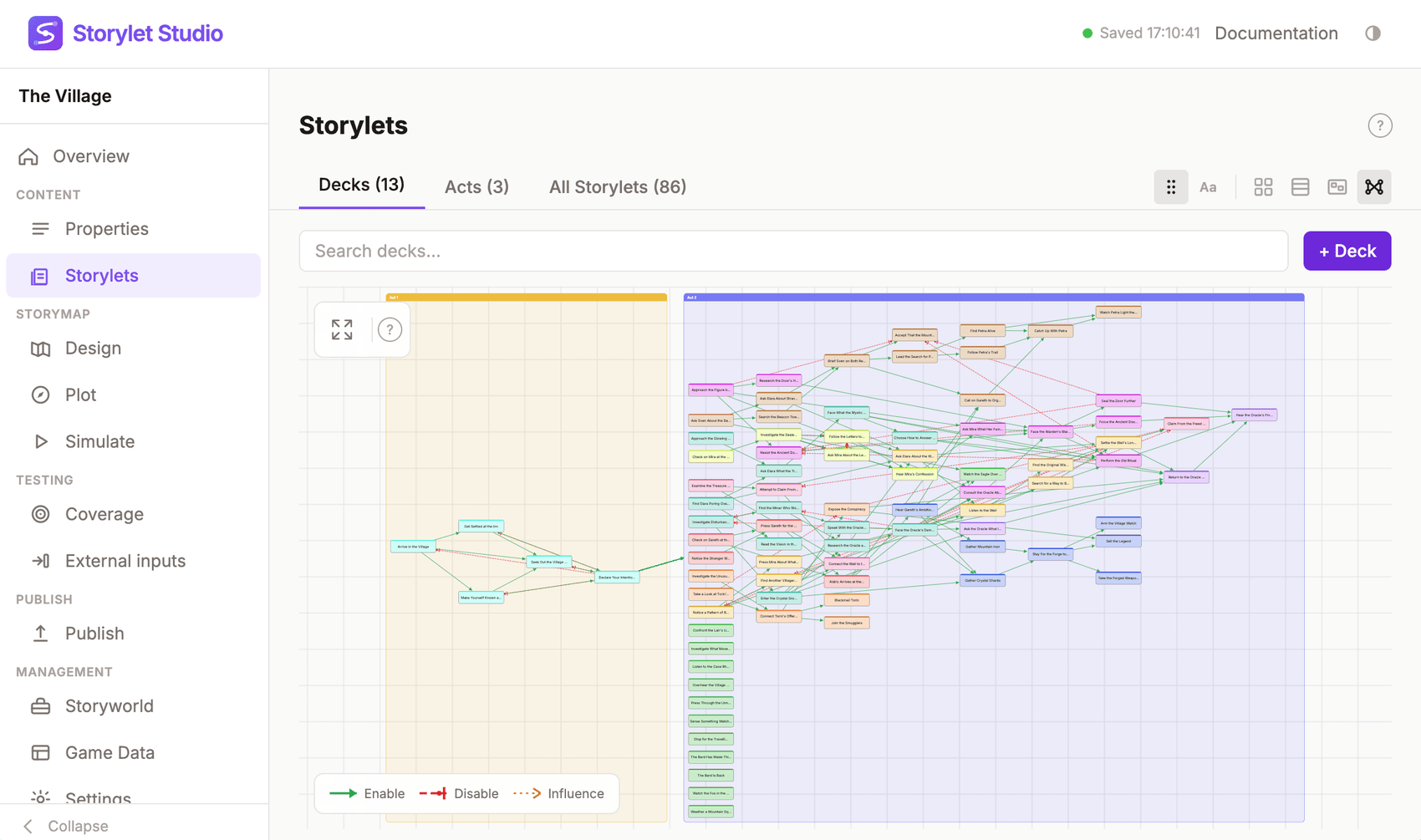
Connections analyses your storyworld statically and shows which storylets can enable, disable, or otherwise influence which others - all from their conditions and outcomes alone. No playthroughs, no simulation. It's the fastest way to answer questions like "what turns this storylet on?", "what could turn it off?", and "if I delete this, what stops working?".
Connections runs entirely on your machine and changes nothing in the storyworld.
Where to find it
Connections is a view in the switcher on the Storylets page (the icon of four nodes joined by crossing lines). It appears in two places, each tuned to what's readable at that scale:
- Inside a single deck - the storylet dependency graph described on this page: that deck's storylets as nodes, with enable / disable / influence edges between them. Drill into a deck from the Decks overview (Cards or Table) to reach it.
- At the Acts overview - the act-flow map (see The act-flow
map below): acts as nodes, with edges showing how
outcomes advance
@story.actfrom one act to the next.
Connections is deliberately not offered on the flat All Storylets
page, on the Decks overview, or inside a single act. At whole-game scale
a storylet-by-storylet graph becomes an unreadable hairball - a single
@story.act advance disables every storylet in every other act - so the
act-flow map carries the useful whole-game signal instead, and the
detailed graph stays where the set is small enough to follow.
Click the Connections icon in the view switcher and the analysis runs automatically against whatever's in scope. Flipping between the views is instant, and the analysis refreshes automatically once you edit a condition, an outcome, or a storylet's deck or act.
How it works
Connections walks every storylet's condition (to find what state it reads) and every outcome (to find what state it writes), then joins the two to produce edges between storylets. Each edge falls into one of three kinds drawn on the graph:
- Enable - The writer's outcome makes the reader's condition more
likely to pass. Example: outcome sets
@metMayor; another storylet gates on@metMayor. - Disable - The writer makes the reader less likely to pass. Example: outcome clears a flag the reader requires.
- Influence - The writer touches state the reader cares about,
but the polarity is not decidable statically. Example: outcome
increments
@x; reader compares@x == 3- we know@xchanges, but we cannot prove it will or will not equal 3.
Each kind has its own colour and line style, with a legend in the toolbar so Enable and Disable stay easy to tell apart at a glance.
There's a fourth kind of relationship the analyser tracks but does NOT draw on the graph:
- Shares reads with - Two storylets that read the same property's same value. They don't actually affect each other (both sit downstream of some other writer), so drawing edges between every pair of co-readers would misrepresent the signal. Instead, the inspector lists co-readers under Shares reads with as a navigation aid for "who else cares about this state?".
Focus mode
When you want to answer a question about one specific storylet - "why doesn't this fire?", "what would this break if I deleted it?", "what does its outcome affect?" - double-click any node on the graph to enter focus mode. The view narrows to that storylet plus the storylets it's connected to (one hop by default).
A Clear focus button appears in the toolbar; click it to go back to the full scope.
When you enter focus mode (or open the view fresh), Connections fits the visible graph into view for you. The Show All button refits it again any time.
Find Storylet
When a storylet is open in the right-hand editor pane, a crosshair Find Storylet button appears in the toolbar (before Show All). Click it and the graph pans to centre that storylet and selects its node - the right-rail swaps from the storylet editor to the connections inspector for that storylet, just as if you'd clicked the node on the graph.
The button only appears when the storylet is in the current scope (All Storylets always; a deck or act scope only when the storylet belongs to that container).
When you switch to the Connections view with a storylet already open in the editor (e.g. after navigating in via a deep-link), Find Storylet fires automatically so the context is right there.
Reading the graph
The graph is a node-link diagram. Storylets are boxes; edges between them carry the colour / style of their class. Acts are drawn as tinted boxes (each in its act's colour) so the phase structure of the storyworld stays visible at a glance.
- Click a node to open the inspector.
- Double-click to focus the analysis on it.
The inspector
Clicking a node on the graph opens the right-rail inspector (the same rail the storylet editor uses). It shows:
- The storylet's title, with a colour wash matching its deck.
- An Edit button that closes the Connections inspector and opens the storylet editor in the same rail.
- This storylet affects - everything its outcomes can enable, disable, or influence.
- Is affected by - the reverse direction; everything that can enable / disable / influence this storylet's condition.
- Shares reads with - co-readers; storylets that gate on the same property value as this one. Useful for "who else cares about this state?" without implying a cause-and-effect relationship.
Each entry has a via column listing the properties (or the specific flags) that link the two storylets.
Click any storylet name in the inspector to re-focus the graph on it.
The act-flow map
At the Acts overview, Connections shows a coarser map whose nodes are acts, not storylets. It answers a different question - "how does the story move through its phases?" - and stays readable no matter how many storylets the storyworld has.
- Nodes are acts, laid out left-to-right in play order, each labelled with the act's name and its storylet count. The Anytime act sits in a lane below with a dashed border, since it is phase-independent.
- Edges run act-to-act: an arrow from one act to another means an
outcome in the first advances
@story.actto the second. Heavier edges carry more of those transitions.
Click any act to drill into it, where that act's decks - and their detailed storylet dependency graphs - are available. The act-flow map is the fastest way to sanity-check the overall shape of the story: that the phases connect the way you intend, with no act left unreachable.
What Connections does not do
- It doesn't replace Coverage Testing. Coverage tells you what storylets were exercised over many random playthroughs. Connections tells you what storylets could affect each other from the data alone. The two answer different questions.
- It doesn't follow play-history dependencies. Conditions that test
count_played_tag()orturns_since_tag()depend on which storylets have actually been played, not on any other storylet's outcomes, so they're skipped. - It doesn't simulate. When an outcome's new value is computed rather than a fixed value, Connections reports the link as Influence rather than a definite enable or disable. That's deliberately cautious: the alternative would be drawing edges that are sometimes wrong.
When to use it
- Adding a new storylet - after wiring it up, double-click to focus and check it's connected the way you expected (it enables the right downstream beats, gates correctly on the right upstream outcomes).
- Debugging dead content - if Coverage shows a storylet never fires, drill into its deck, switch to the Connections view, and double-click the node to see whether anything can enable its condition at all.
- Refactoring - before deleting an outcome or storylet, focus on it to see what downstream beats it currently enables / disables, so you know what has to be re-wired.
- Reading someone else's storyworld - start at the act-flow map (Acts overview) to get the shape of the phases, then drill into a deck and use its dependency graph to see how its beats hang together.