
Publishing to the StoryletEngine Server
The StoryletEngine Server is a hosted runtime that runs your storyworld as a network service, so external clients (kiosks, IoT buttons, mobile apps, game backends, browsers behind a QR code) can join one shared session and play through your storyworld over the network.
This page covers the author flow: how to stage a bundle from the Publish page so it shows up in the server's management UI, ready to go live.
The operator flow (running and monitoring live sessions) lives at StoryletEngine Server - monitoring.
Web build only. The "Stage to StoryletEngine Server" tick on the Publish page only shows up in the web build, and only when staging is configured for the env you're on. The desktop app skips this - there's no server in offline use.
What "staging" means
The server holds two slots per app: live and staged.
- Live is what new sessions use. Existing sessions stay on the version they started with.
- Staged is the next version waiting in the wings. It does nothing until an operator promotes it.
When you publish from Storylet Studio with the Stage to StoryletEngine Server tick on, the new bundle becomes the app's staged version. Nothing on the server changes for live players - sessions in flight keep running on the bundle they started with. The operator then decides when, and whether, to promote.
Rollback is the same move in reverse: an operator picks an earlier retired version and clicks Rollback. Active sessions still aren't disturbed.
This split is there so authors can publish freely without fretting about disrupting a live installation, and operators can pause and look between publish and going live.
Prerequisites
Before the staging option is any use, three things have to be in place. The first is about your own role; the other two your administrator sets up.
1. You have a role that can publish
Staging is part of publishing, so you need to be a member of an organisation that has the server, with the Publisher role (or a higher role that includes it). With publishing rights you can stage from the Publish page; without them the staging option won't be there for you. See Members and Roles.
2. The org has at least one app registered for your storyworld
An "app" on the server is one deployment site running your storyworld. One museum exhibit, one lobby installation, one street-game run, one cloud-game backend - that's one app. Every device at that site shares the same app: the venue's kiosks, the IoT buttons, the phones that scan a QR code to join, any web frontends. They all play into the same shared storyworld, not their own private copies.
You only need a fresh app when you have a fresh site, not a fresh device. Three identical venues running the same storyworld want three apps (so each has its own keys, its own session history, its own bundle pinning). A single venue with five devices wants one app.
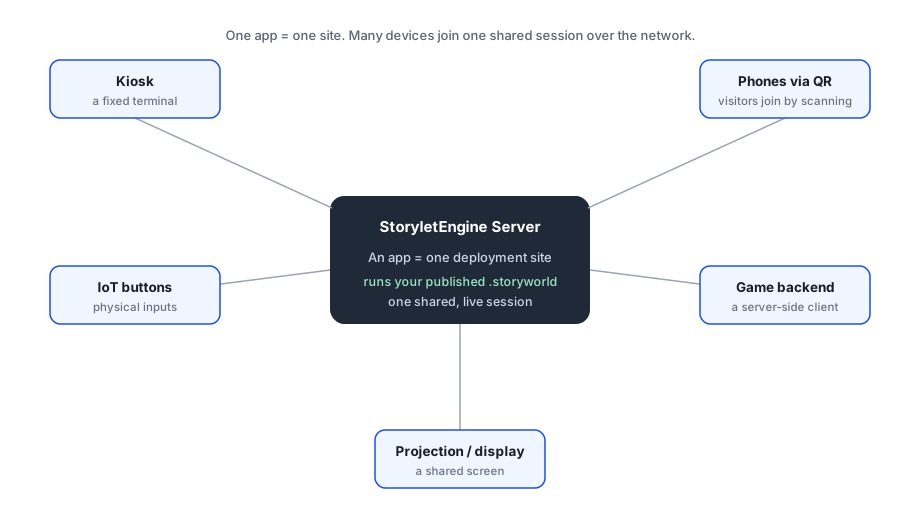
Your org admin creates apps from inside the management UI at server.storylet.studio → Applications → New application. They give the app a name (usually the site name - "Lobby installation - Venue A", not "kiosk-1"), pick the source storyworld from the dropdown, and adjust per-app config (rate limits, admin-override safety flag, monitor caps).
If your storyworld has no apps registered yet, the Publish page says so and the staging tick is disabled. Ask your admin to create one.
3. The server connection is configured
The authoring tool has to be connected to the server so it can stage on your behalf. This is a one-time setup your administrator does for each environment.
When it's in place, the Stage to StoryletEngine Server tick appears on the Publish page. When it isn't, the tick is hidden and publishing works exactly as before (it just can't stage to the server).
The Publish page flow
Open your storyworld in the web app, go to the Publish page, and pick Publish to bundle. Two extra controls appear:
- Tick "Stage to StoryletEngine Server" - opt in. (Off by default.)
- Pick an app from the dropdown. Only apps registered for this storyworld are listed. If none are, the help text tells you what to do.
Click Publish.
The publish does two things in sequence:
- Builds the bundle and writes it to Storage (same as before - this is what the Standalone Player and the in-browser preview consume).
- Calls the server to stage that Storage path as a new bundle version for the chosen app.
On success, you see:
✓ Staged as
v17. Promote in the management UI.
The version number (v17 here) is generated server-side and climbs monotonically per app, so you always know which is newest.
If staging fails, the bundle is still in Storage and Standalone Player / preview both work - only the server-side staging step errored. The error message tells you what went wrong (most often: no live bundle yet, or the storyworld id doesn't match the app). Fix it and re-publish.
Promote and rollback
Promote and rollback are operator actions. Authors can ask for them, but the management UI is where they happen. See StoryletEngine Server - monitoring for the screen.
In short: the operator opens server.storylet.studio → Applications → <your app name> → finds the staged version in the bundles table → clicks Promote. The live version is replaced. Existing sessions keep running on whatever version they started with; new sessions get the new live version.
Rollback is the symmetric click on an earlier retired version. Retire is the destructive one - it cancels a staged version, or (used on the live version) leaves the app with no live bundle until something else is promoted. The retire UI warns you when retiring would leave new sessions failing with no_live_bundle.
Why no "live now" button from the Publish page
The split into stage plus promote is deliberate. Authors and operators are often different people, on different schedules:
- An author publishes when they're done with a slice of work.
- An operator promotes when it's safe to go live - typically off-hours for a busy venue, or after a quick stage-and-verify check at the kiosk.
If you're a one-person org running both roles, you can stage, then click Promote in the management UI in the same minute. Two clicks total. The seam is there for when it isn't one person.
Cross-references
- The Standalone Player - bundle a one-file HTML player from the same Publish page so a playtester can try your storyworld without involving the server at all.
- Getting Started - install or sign in to Storylet Studio; build a first storyworld; reach a Publish step.
- StoryletEngine Server - monitoring - the operator-facing side: promote / rollback / retire, the sessions dashboard, the Inspector, save / restore.